
Ask your question and get a summary of the document by referencing this page and the AI provider of your choice
Version History
- "`purge` and `minify` now work on Next.js through `@intlayer/swc`, no `babel.config.js` required"v9.2.109/08/2026
- "List Babel plugins in required pipeline order (extract → purge → minify → optimize) in the reference tables"v8.12.024/06/2026
- "Added `intlayerPurgeBabelPlugin` and `intlayerMinifyBabelPlugin` for Babel/Webpack; clarified the plugin pipeline"v8.12.007/06/2026
- "Added `minify` and `purge` options to build configuration"v8.7.008/04/2026
The content of this page was translated using an AI.
See the last version of the original content in EnglishIf you have an idea for improving this documentation, please feel free to contribute by submitting a pull request on GitHub.
GitHub link to the documentationCopy doc Markdown to clipboard
i18n Bundle Size & Performance Optimisation
One of the most common challenges with traditional i18n solutions relying on JSON files is managing content size. If developers do not manually separate content into namespaces, users often end up downloading the translations for every page and potentially every language just to view a single page.
For example, an application with 10 pages translated into 10 languages could result in a user downloading 100 pages' worth of content, even though they only need one (the current page in the current language). This leads to wasted bandwidth and slower load times.
The graph below estimates that cost for a theoretical app of 1 to 10 pages translated into 1 to 10 locales, with about 30 KB of text per page. Dynamic imports remove the locale axis, scoping content per component removes the page axis, and only the combination keeps the payload flat.
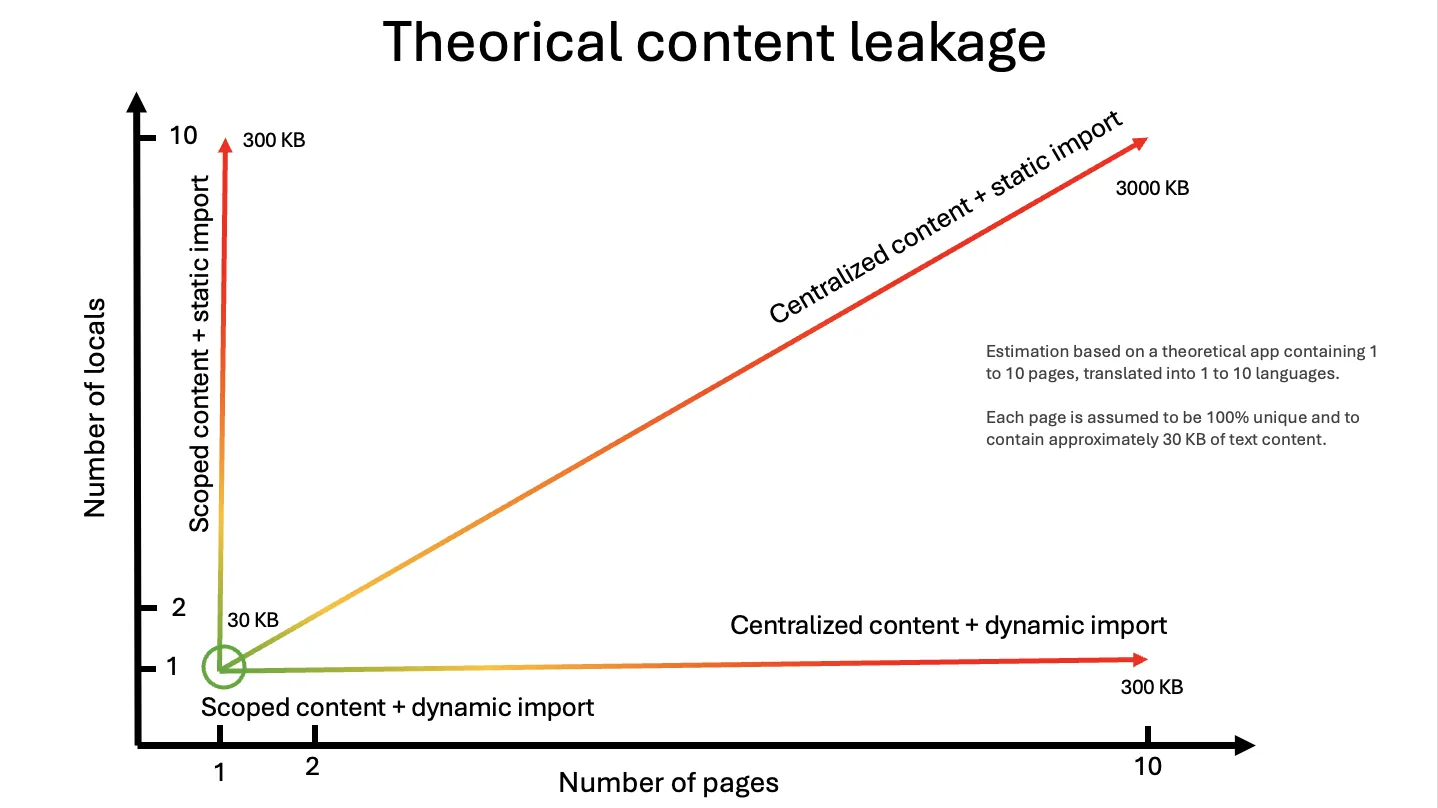
Intlayer solves this problem through build-time optimisation. It analyses your code to detect exactly which dictionaries are actually used per component and re-injects only the necessary content into your bundle.
Table of Contents
How it works
Intlayer uses a per-component approach. Unlike global JSON files, your content is defined alongside or within your components. During the build process, Intlayer will:
- Analyse your code to find
useIntlayercalls. - Build the corresponding dictionary content.
- Replace the
useIntlayercall with optimised code based on your configuration.
This ensures that:
- If a component is not imported, its content is not included in the bundle (Dead Code Elimination).
- If a component is lazy-loaded, its content is also lazy-loaded.
Setup by Platform
Next.js
Next.js requires the @intlayer/swc plugin, because Next.js uses SWC for builds. Since v9.2.1 this single package covers the whole pipeline, optimise (import rewriting), purge and minify.
This plugin is not installed by default as SWC plugins are still experimental for Next.js. This may change in the future.
Next.js 16.1.0 is the minimum version. It is the first release built on SWC's forward-compatible Wasm plugin ABI; earlier releases reject the plugin. withIntlayer reads your Next.js version and simply does not register the plugin below 16.1.0. Those builds still succeed, they just run without bundle optimisation.
Copy the code to the clipboard
Copy the code to the clipboard
Once installed, Intlayer will automatically detect and use the plugin.
The purge and minify passes (field removal and field renaming) require no extra package and no babel.config.js. Wrap your config with withIntlayer and toggle the flags in intlayer.config.ts:
Copy the code to the clipboard
Copy the code to the clipboard
During next build, withIntlayer analyses your sources, rewrites the compiled dictionaries, and forwards the resulting field-rename tables to @intlayer/swc, which updates the matching property accesses in your code.
Use the asyncwithIntlayer, notwithIntlayerSync. The sync variant does not run the analysis pipeline, so purge and minify have no effect with it.
Purge and minify run onnext buildonly, the optimise pipeline is off duringnext dev.
Earlier versions (before 9.2.1) required @intlayer/babel and a babel.config.js declaring intlayerPurgeBabelPlugin and intlayerMinifyBabelPlugin. That file is no longer needed and can be deleted.
Vite
Vite uses the @intlayer/babel plugin, which is included as a dependency of vite-intlayer. The full optimisation pipeline (import rewrite, purge, and minify) is enabled by default and requires no extra plugin registration.
Enable purge and minify by setting the corresponding flags in intlayer.config.ts:
Copy the code to the clipboard
Webpack (and Next.js with Babel)
Install @intlayer/babel:
Copy the code to the clipboard
Add all four plugins to babel.config.js in the correct order:
Copy the code to the clipboard
Plugin Reference
Intlayer's build optimisation is split into several discrete plugins, each with a single responsibility. Understanding what each one does prevents confusion when configuring them.
Babel plugins (@intlayer/babel)
These are used directly in babel.config.js for Webpack-based setups (Next.js with Babel, CRA, custom Webpack, etc).
The table below lists them in their required pipeline order (the same order they must appear in babel.config.js):
Open the table in a modal to view all data content clearly
| Plugin | What it does |
|---|---|
intlayerExtractBabelPlugin | Scans .content.ts files and writes compiled dictionaries to .intlayer/ |
intlayerPurgeBabelPlugin | Scans all source files, removes unused content fields from the compiled .intlayer/**/*.json dictionary files |
intlayerMinifyBabelPlugin | Renames content field keys to short alphabetical aliases (title → a) in both JSON files and the source code |
intlayerOptimizeBabelPlugin | Rewrites useIntlayer('key') → useDictionary(hash) and injects the matching dictionary import |
Plugin order matters. In yourbabel.config.jsthe purge and minify plugins must appear before the optimize plugin. The optimize pass replacesuseIntlayer('key')with an opaqueuseDictionary(hash)call, wiping out the dictionary key information the purge and minify passes need to identify which fields are used.
Each Babel plugin has a corresponding options helper that reads your intlayer.config.ts once at config load time and returns pre-resolved values:
Open the table in a modal to view all data content clearly
| Options helper | Used with |
|---|---|
getExtractPluginOptions() | intlayerExtractBabelPlugin |
getPurgePluginOptions() | intlayerPurgeBabelPlugin |
getMinifyPluginOptions() | intlayerMinifyBabelPlugin |
getOptimizePluginOptions() | intlayerOptimizeBabelPlugin |
Vite plugins (vite-intlayer)
Vite users never configure these directly. They are wired up automatically when you call withIntlayer() in vite.config.ts. The build.purge and build.minify flags in intlayer.config.ts toggle the corresponding behaviour without any extra plugin registration.
Open the table in a modal to view all data content clearly
| Internal Vite plugin | Equivalent behaviour |
|---|---|
| Usage analyzer | Same as intlayerPurgeBabelPlugin analyse pass |
| Dictionary prune | Same as intlayerPurgeBabelPlugin JSON write pass |
| Dictionary minify | Same as intlayerMinifyBabelPlugin JSON write pass |
| Babel transform | Same as intlayerMinifyBabelPlugin source code rename + intlayerOptimizeBabelPlugin |
SWC plugin (@intlayer/swc)
Next.js users never configure these directly either. Since v9.2.1, withIntlayer() in next.config.ts runs the full pipeline (purge, minify and import rewriting) from the build.purge and build.minify flags alone.
The work is split in two, because an SWC Wasm plugin transforms one file at a time with no file-system access:
Open the table in a modal to view all data content clearly
| Pass | Where it runs | What it does |
|---|---|---|
| Usage analysis + JSON purge/minify | Node, inside withIntlayer() | Reads every component source file, rewrites .intlayer/**/*.json, produces rename tables |
Source rewriting (content.title → .a) | @intlayer/swc (Wasm) | Applies the rename tables to the matching property accesses in your code |
Import rewriting (useIntlayer → dict) | @intlayer/swc (Wasm) | Same as intlayerOptimizeBabelPlugin |
Deciding which fields are unused and what alias each one gets requires cross-file state and file I/O, so that half runs in Node; the SWC plugin only receives the resulting tables.
Configuration
You can control how Intlayer optimises your bundle via the build property in your intlayer.config.ts.
Copy the code to the clipboard
It is recommended to keep the default value (undefined) foroptimizein most cases.
See the configuration reference for all options: Configuration
Build Options
Open the table in a modal to view all data content clearly
| Property | Type | Default | Description |
|---|---|---|---|
optimize | boolean / undefined | undefined | Enables the import rewrite pass. undefined = active in production builds only. false disables purge and minify as well. |
minify | boolean | false | Renames content field keys in compiled JSON files to short alphabetical aliases. Rewrites matching property accesses in the source code as well. Has no effect when optimize is false. |
purge | boolean | false | Removes content fields that are never statically accessed in the source code from the compiled JSON files. Has no effect when optimize is false. |
Minification (field key rename)
build.minify does not minify your JavaScript bundle, your bundler handles that. Instead, it shrinks the compiled dictionary JSON files by replacing every user-defined content field key with a short alphabetical alias:
Copy the code to the clipboard
The same rename is applied to all property accesses in your source code, so content.title becomes content.a in the compiled output. The runtime behaviour is identical.
Copy the code to the clipboard
Minification is skipped whenoptimizeisfalse. Wheneditor.enabledistrueit still runs, but without the field-renaming step, the visual editor resolves edits bykeyPath, so the original field names have to survive.
On Next.js, minification is also skipped when @intlayer/swc is not installed or cannot be loaded (Next.js below 16.1.0). The plugin is the half that rewrites the source accesses, so renaming the dictionaries without it would leave your code reading field names that no longer exist.
Minification is also skipped for dictionaries loaded via importMode: 'fetch' because their JSON is served from a remote API using the original field names, renaming the client-side keys would break the server/client contract.
Purging (unused field removal)
build.purge analyses which content fields are actually accessed in your source code and removes all others from the compiled JSON files.
Copy the code to the clipboard
Example: a dictionary with five fields where only two are used:
Copy the code to the clipboard
Purge is skipped whenoptimizeisfalse. It stays active wheneditor.enabledistrue, a purged field is read by no component, so the editor never renders it. On Next.js it is additionally skipped when@intlayer/swcis unavailable, and when compat-adapter callers are configured.
Purge is also conservatively skipped when a source file cannot be parsed, or when the result of useIntlayer is assigned to a variable and passed around in ways the static analyser cannot track (e.g. spread into an object, passed as a prop without destructuring). In those cases, the full dictionary is preserved.
Import Mode
For large applications, including several pages and locales, your JSON can represent an important part of your bundle size. Intlayer allows you to control how dictionaries are loaded using the importMode option.
Global definition
The import mode can be defined globally in your intlayer.config.ts file.
Copy the code to the clipboard
Per-dictionary definition
You can override the import mode for individual dictionaries in their .content.{{ts|tsx|js|jsx|mjs|cjs|json|jsonc|json5|md|mdx|yaml|yml}} files.
Copy the code to the clipboard
Open the table in a modal to view all data content clearly
| Property | Type | Default | Description |
|---|---|---|---|
importMode | 'static', 'dynamic', 'fetch' | 'static' | Deprecated: Use dictionary.importMode instead. Determines how dictionaries are loaded (see below). |
The importMode setting determines how the dictionary's content is injected into your component. You can define it globally in intlayer.config.ts under the dictionary object, or override it on a per-dictionary basis in its .content.ts file.
1. Static Mode (default)
In static mode, Intlayer replaces useIntlayer with useDictionary and injects the dictionary directly into the JavaScript bundle.
- Pros: Instant rendering (synchronous), zero additional network requests during hydration.
- Cons: The bundle includes translations for all available languages for that specific component.
- Best for: Single Page Applications (SPA).
Transformed code example:
Copy the code to the clipboard
2. Dynamic Mode
In dynamic mode, Intlayer replaces the useIntlayer with useDictionaryAsync. This uses import() (a Suspense-like mechanism) to lazy-load specifically the JSON for the current locale.
- Pros: Locale-level tree shaking. A user viewing the English version will download only the English dictionary. The French dictionary is never loaded.
- Cons: Triggers a network request (asset fetch) per component during hydration.
- Best for: Large text blocks, articles, or applications supporting many languages where bundle size is critical.
Transformed code example:
Copy the code to the clipboard
When usingimportMode: 'dynamic', if you have 100 components usinguseIntlayeron a single page, the browser will attempt 100 separate fetches. To avoid this "waterfall" of requests, group content into fewer.contentfiles (e.g. one dictionary per page section) instead of one per atom component. You can also use multiple.contentfiles that use the same key. Intlayer will merge them into a single dictionary.
3. Fetch Mode
Behaves similarly to Dynamic mode but attempts to fetch dictionaries from the Intlayer Live Sync API first. If the API call fails or the content is not marked for live updates, it falls back to the dynamic import.
Transformed code example:
Copy the code to the clipboard
See CMS documentation for more details: CMS
In fetch mode, purge and minification are not applied because the JSON is served from a remote API using the original field names.
Summary: Static vs Dynamic
Open the table in a modal to view all data content clearly
| Feature | Static Mode | Dynamic Mode |
|---|---|---|
| JS Bundle Size | Larger (includes all languages for the component) | Smallest (code only, no content) |
| Initial Load | Instant (Content is in bundle) | Slight delay (Fetches JSON) |
| Network Requests | 0 extra requests | 1 request per dictionary key |
| Tree Shaking | Component-level | Component-level + Locale-level |
| Best Use Case | UI Components, Small Apps | Text-heavy pages, Many Languages |
Analyse your bundle
Analysing your bundle is the most direct way to identify "heavy" JSON files and opportunities for code-splitting. These tools generate a visual treemap of your application's compiled code, allowing you to see exactly which libraries are taking up the most space.
Vite / Rollup
Vite uses Rollup under the hood. The rollup-plugin-visualizer generates an interactive HTML file showing the size of each module in your graph.
Copy the code to the clipboard
Copy the code to the clipboard
Next.js (Turbopack)
For projects using the App Router and Turbopack, Next.js provides a built-in, experimental analyser that requires no extra dependencies.
Copy the code to the clipboard
Next.js (Webpack)
If you are using the default Webpack bundler in Next.js, use the official bundle analyser. Trigger it by setting an environment variable during your build.
Copy the code to the clipboard
Copy the code to the clipboard
Usage:
Copy the code to the clipboard
Standard Webpack
For Create React App (ejected), Angular, or custom Webpack setups, use the industry standard webpack-bundle-analyzer.
Copy the code to the clipboard
Copy the code to the clipboard